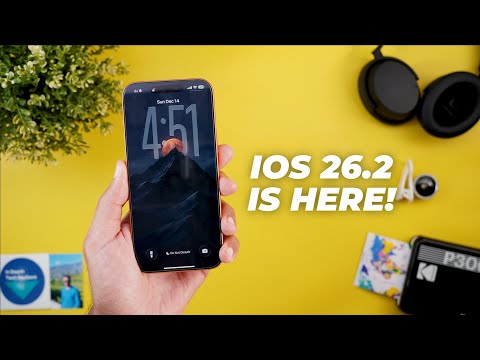
Hello everyone and welcome to the channel. Today we will talk about the top and most hidden features of iOS 26.2. Sorry for being late because I had some personal issues that didn't allow me to publish the video on time. But late is better than nothing because the more time I spend with this update, the more features I found. So without further ado, let's jump in. Right off the bat, all the wallpapers you see in this video are available for download through my Patreons page using the link in the description below. And let me show you some of the samples I have on my lock screen. As you see, all of them look impressive. And this is just a small sample because you will get a total of 65 wallpapers in this pack. And you can see all of them right here on my 17 Pro Max. So, if you want to give it a try, use the link in the description.
And now let's get back to iOS 26.2. The first app to talk about is Safari. On the left I have iOS 26.1 on the 16 Pro Max and on the right I have 26.2 on the 17 Pro Max and that will be the case throughout the video. The first change in Safari is in the tap switcher. You'll notice here that the search bar looks slightly different. Plus, when you tap on it, you will see even more differences. It's no longer using the same flat design like before. Plus, it has a white background instead of gray. The icons and text are now darker to make them easier to see. Plus, the cancel button got replaced with a circular X. The second change is in the page menu. First, the margin at the bottom is now smaller. So, the card itself pushed down and when you tap on the ellipses, you will see that the edit and tick buttons got replaced with an X and edit buttons and both swapped places.
Back to the page menu. When you go to manage extension, you will see the search bar at the top is also using darker text and icons to make it easier to see. So that's it with Safari. And now let's talk about Apple Photos. And the first change is in the months view. You will notice here that the grid in iOS 26.2 is a lot bigger, giving me more days to jump right into, even though both phones have the same exact photos under May. And you will see the same thing happening under multiple dates. The second change, when you select multiple photos on both and then tap on the ellipses, you will see the delete option is now showing at the top right corner. Moving the hide option to the list to make it slightly longer than before, which means now you have two delete buttons, one at the top right corner and one at the bottom right corner.
Moving to the widgets picker on both, Apple did some reordering and a small redesign for the tips widget. Starting with the reordering. When you go to the find my on both, you will see here that it starts now with items instead of people. While previously it was the other way around. Under home, it now starts with the accessories widgets and then everything else come instead of having it as the last option. The tips widget also got a small redesign. Now the text is pushed further down in all sizes.
Moving to the lock screen. When you customize it on both, you will see a brand new slider under the clock that will allow you to adjust how liquid glass is the clock. So the more you move it to the left, the more liquid glass it looks and the more you move it to the right, the more frosted glass it looks. Also, this option disappears once you switch to the solid design. Also, the clear button got redesigned. When you expand the notifications on both, you will see that the X is now surrounded with a liquid glass container. And when you haptic press on both, you will see a new design as well.
So, here is how they look side by side. It's now more rounded with the same liquid glass design instead of using a solid background. The control center also got two small tweaks. The first one when I expand the media controls and then go to airplane. When I tap on any empty space, it goes back to the control center while previously it takes me back to the media controls first. And if I want to get back to the control center, I need to tap one more time. And when I try to add a new control and then haptic press on some of the options, you will see that the highlight color is now more prominent. Next, the reminders app. And the first thing I found after installing this build is this new suggested list option that I've never seen before. In this case, it says groceries and it will automatically categorize items.
When I tap on the plus button, it will immediately create the list for me. The second change when you try to create a new reminder, you will see this new urgent toggle that will also set an alarm for your reminder to get full screen notifications, not just the normal notification sound. And this what happens when you turn on the urgent toggle. It will first show you a full screen notification similar to your alarm. You can see the reminder title at the bottom.
You can slide to stop the alarm completely or snooze it. And when you snooze the alarm, you see an overlay card with the remaining snooze time, the ability to mark the reminder as complete. And at the top right corner, you can reschedu it as well. And when you snooze the reminder, you will see a live activity in the dynamic island showing the current snooze time, which you can also dismiss by tapping on the X.
And that's why when you go to the reminders app settings, you will see more access given to the app like the ability to access the alarms, the live activities, the background app refresh, and cellular data. We also got a brand new toggle called complete from alarm. And when you turn on the switch, this what happens. You will get a complete button right in the alarm notification. In the free form app, we got a brand new option to add a new table by going to the attachment menu and then add table. And here you can add more columns by tapping on the plus button at the top right corner like this.
Or you can add more rows by tapping on the other plus. Next, Apple Music. And the first change is the offline lyrics access for the downloaded songs. So here I have the same downloaded song on both with the airplane mode activated. And as you see the lyrics button is active only on iOS 26.2. The second change is the slightly redesigned search bar. You will see the font is now darker to make it easier to see. Plus the placeholder text is also different. The playlist album art also got updated. And now it takes more than half of the screen. And here is how they look side by side. In the podcasts app, we got a new feature called automatic chapters.
So, for example, if you are playing a podcast without chapters like this one now on iOS 26.2, it will automatically generate them for you. And here is how it works. The level tool under the measure app also got the liquid glass design. So, let me show you how they look side by side. As you see, this new bubbly animation looks really, really nice. in the news app, which for some reason gone from my iPhone 16 Pro Max, but if you have it now, you should see these categories at the top that will allow you to filter the news right away.
And in Apple CarPlay, when you go to settings and scroll all the way down, now you have the option to turn off the pinned conversations. In the games app, we have two new changes. The first one is the ability to see up to four items under certain categories instead of always two like before. Plus, when you go to library now, you will see a new option to sort the games by size. And you have the ability to make it largest first, or when you tap on it again, it will make it the smallest first. On a side note, Apple updated the expand and collapse animation of the overlay menus throughout the apps and system menus. And here is how they look side by side. Now, it's time to talk about all the new changes under settings. And the first one is the slightly redesigned search bar.
You'll notice here that the font is darker to make things more visible under the battery settings and then charging. This is the first time for me to see a suggestion to set the charging limit to 80%. And the card says based on your iPhone habits, a charge limit of 80% is recommended to help preserve your battery. And the 80% is highlighted in green. Once I tap on set charge limit, it will automatically change the slider under accessibility and then audio and visual.
When you go all the way down, you will see that the LED flash for alerts is now called flash for alerts. And when you go inside with iOS 26.2, now you have the ability to also flash the screen, not only the LED flash. And you can choose between LED flash, screen only, or both. And here's what happens when you turn on the screen flash. It will simply toggle the brightness to 100% once and that's pretty much it. Back to the accessibility settings. When you go to display and text and then enable the reduce transparency option on both and then go to the normal display and the brightness settings and then liquid glass, as you see the clear and tinted options are grayed out. While currently in 26.2, they are still available. But once you change the setting, it will ask you to turn off the reduce transparency first to be able to modify the settings.
Under general and then airdrop, we got a brand new option called manage known Airdrop contacts. And the description says you'll automatically appear for 30 days to people you have shared a one-time code with, which means when you pair two unknown devices for the first time using a code, you don't need to do the same action for up to 30 days. But if you want to manage this list, you can tap on the menu. And if you want to mark any of these contacts as unknown one more time, just tap on it and scroll all the way down. And you will see the mark as unknown option here at the bottom.
Again, under general, when you go to autofillin passwords, the suggest strong passwords toggle is now located in this page instead of showing under the passwords app settings. So when you go to passwords and then scroll down a bit, you will see the suggest strong passwords over here under the focus settings. When you go to any of the focus modes and then go to add filter, you will see that the cancel button got replaced with a circular X. And the same applies to the add a schedule page. Under emergency SOS, we got a brand new toggle called call quietly. And the description says, "Warning, alarms, flashes, and voice over audio will be silenced when using hold and release or five button presses to place an emergency call." And when I go to wallet and Apple Pay and then Apple Pay defaults, I got a brand new section called show card benefits and offers.
And I can toggle any of these options on and off. I have pay later, rewards, offers, and other pay later options. Plus, I got this new Apple Cash toggle under the wallet and Apple Pay settings. And the last change I'm going to show you in settings is located under apps, then passwords. And the save passwords menu that used to give you the option to ask when signing in or do not ask when signing in got removed from this page. Plus, when you scroll down, you will see a new option here called show excluded websites. And this one will show you all the websites you chose not to save their passwords while signing in. And the last two changes I'm going to talk about which I'm not going to be able to show you on camera.
If you have AirPods in the EU, now you get access to the live translate feature. The second one is Apple updated the sleep scoring system and as you see it's now more challenging than the previous version as shown now on the screen. Plus now you have the ability to choose what type of sleep score notifications you want to get. So for example, if you want to receive notifications when your score is low, medium or high or for everything, you can open the health app, then tap on the profile picture and then notifications.
If you have sleep score data, you should see the option over here. When you tap on it, it will allow you to choose exactly what type of notifications you want to receive. Now, it's time to end this video by talking about my experience with the stability, performance, and battery of iOS 26.2. For the past one and a half days, I didn't come across a single issue, which is a good sign that this update is very stable. And when it comes to the performance, I started to notice faster app launching speeds and animations. Plus, I got better numbers in Geekbench 6. Starting with the CPU. Here is my history. I got 10,128 for the multi-core and 3,876 for the single core. And this is the first time to reach the 10,000 mark in any of my previous tests. And when it comes to the GPU, I don't have a history to compare, but I will show you the number so you can cross reference it with your device to see if there is any improvement.
Here on the 17 Pro Max, I got 46,037. In the 3D Mark score, I also see an improvement. When you take a look at the Wildlife Extreme, I got 5,677, up from 5,432. and the average FPS is 34 while previously I got 32.5. So that's pretty much it for today. These are all the new changes in iOS 26.2. Please let me know in the comments if I missed anything. But for now, thanks so much for watching and see you in the next.


