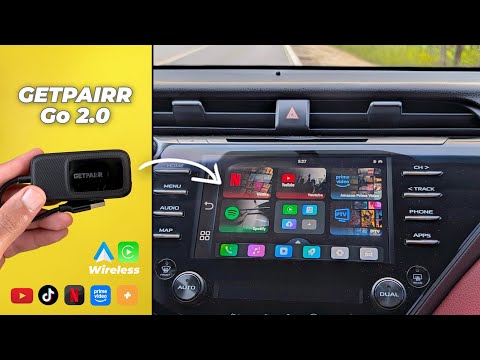
Using wired Apple CarPlay or Android Auto is a headache to deal with, but you can easily fix it with this Get Pair Go 2.0 for just $89. It didn't only convert my wired Apple CarPlay and Android Auto to wireless, but it also gave me access to stream social media videos, movies, shows, and music from all the popular platforms you could think of.
Consider this as the more affordable option to the Oro AI Box P3 Pro I reviewed last month. So, let's dig deeper to show you everything you need to know. Let's start with the unboxing. You get the user manual and the quick guide, which are helpful to quickly get familiar with the available ports and setup instructions. Then, we have a bypass power cable, which you might need in case your car's USB port doesn't deliver enough power to the device. A USBC toa adapter for cars that only support a type-C connection. And finally, the Get Pair Go 2.0, which is small enough to easily hide in your car's dashboard. Now, let's put it into action to see how it works.
Now, it's time to try the Get Pair Go 2.0 in the car. And the first thing you need to do is to make sure your car's infotainment system has the Apple CarPlay functionality activated. In my case, it's located under setup, then general, then projection settings. And here I have wired Apple CarPlay and wired Android Auto, both activated. And now let's connect it to the USB port in the car to see how it works and give it like 20 seconds to start. Now the device is ready after going through the initial setup to choose the language, the region and time format. And the first thing I did after the initial setup is I went to settings then Wi-Fi to connect the device to the internet through my phone's hotspot as you see over here. You can also connect it to your car's Wi-Fi if you have one. And now let's take a quick look at the built-in software.
The first thing you will see is the home screen widgets that will give you quick access to the most popular apps that are always restricted on Apple CarPlay and Android Auto like Netflix, Amazon Prime, YouTube, and here you have the IP TV application as well. Here you have some shortcuts that you can customize. You can long press on any of the items to delete the shortcut like this and then add a new one if you want. You can also reorder the widgets by tapping on this button.
And here is how it works. And when you tap on this button, it will take you to the full app list. Here we have all the apps we just mentioned. Plus, you get this app hub application that will allow you to download more apps. It's like a mini app store for the device itself. And here you will see some apps to choose from. And this is how it works. Let's go back to the home. Here you have quick shortcut to your phone if you have the Bluetooth device connected to the get paired device itself. You can also play some offline videos if you have a flash memory connected to the device to the USB port at the back of the device which I'm going to show you later in the video. And here we have a quick shortcut that takes you back to your car's infotainment system. And this is in a nutshell how the uh built-in software works.
You can also access the recent apps screen and you can close all of them like this and you have a quick back button over here. Now let me show you some of the apps you can use on the get pair go 2.0 and the first one is YouTube and here I have all my videos on the screen. You can see the normal videos including YouTube shorts. As you see over here all the shorts are loading. So let's try one of the videos to show you how it works. Here's the first one. And let's switch to the full screen view by tapping on this button.
And it will give you all the controls you need to seek forward like this. Play and pause or move to the next video as you would expect from the YouTube app on your phone or PC. The second example I want to show you is Tik Tok which I was able to download from the app hub. As you see here, Tik Tok is already installed. When you scroll down a bit, you'll see things like Disney Plus and a lot more. Let's get back to the home and try Tik Tok. Let me show you how it works. I already signed in to my account. And as you see, the swiping works as expected. No problems. And you can hear the audio on your car's stereo. Now, let's try Prime Video. And I think in this app, the scrolling is not the best.
You need to be a little bit patient. So maybe this is something that will be fixed over time with software updates maybe to the app or the device itself. So let's play a video which you can still do without a problem but you need to be a little bit patient up until it loads. So when you tap on the screen, you will get all the media controls, the sound, the subtitles and you can seek forward or backward and everything works as expected. And if you want to get access to the quick shortcuts, you need to swipe from the left if you are playing something in full screen view like this. One more thing you can do is the ability to play offline videos by connecting a flash memory to the USB port on the back. And by this you can go to the app list and then videos and it will automatically show you all the videos you can play. You also get access to the files app which will show you all the files on the external storage. Now it's time to try the wireless Apple CarPlay and Android Auto.
And I will start with my Android phone. On the device you will see a quick shortcut here on the home screen or you can also access it from the apps screen. It's called multiplay. Once you tap on it, it will activate the Bluetooth connection on your phone. You need to search or pair a new device. And here I found it. Then give it like 10 seconds until Android Auto loads. So here you go. Now my wireless Android Auto is connected. I get all the functionalities of Android Auto without any wires. And as you see all the apps are showing over here. This is the navigation and this is how it works. And then we have the music. This is YouTube music. And you can see all my playlists which I can play immediately. Here is the full list of music I have. I can get access to my library. So this is how it works.
Exactly the same way as the normal Android Auto. And here's a quick access to the phone app and so on and so forth. Now, let's also give it a try with Apple CarPlay. Now, it's time to try the wireless Apple CarPlay. And here I have the 17 Pro Max. So, I will go to my Bluetooth settings and then connect to this Bluetooth device, which I should see right here. So, I'm going to tap on it.
Then, I'm going to accept the pairing request and then connect to CarPlay. And here you go. Now I have the wireless Apple CarPlay activated. Let me also go through the wireless Apple CarPlay menus to show you how it works. Here is the apps list and let's go to the widgets. Tap on the navigation. This is the map responsiveness. Let's navigate to any random place. This is the navigation performance. You can zoom in, zoom out like this. So let's end the route. Now, let's go to Apple Music. As you see, it works as expected. Let's play a track like this one, for example. Hit play. And here is how it works. Go back to the home screen. And then we have some extra widgets on the left side. So, as you see, the performance is good enough and it will get the job done for you. Now, it's time to talk about some pro tips. Even though this device will give you wireless Apple CarPlay and the wireless Android Auto, but it can connect to your car's infotainment system only through wired Apple CarPlay.
So, for example, if your car only supports wireless Apple CarPlay, it will not work. And if it only supports Android Auto, either wired or wireless, it will also not work. The second tip, if you faced any major issues with the device, you will see a hidden paperclip style factory reset button on the back that you need to press for 10 seconds to trigger the action. The device comes with 32 GB of internal storage with no SD card expansion slot, but you get a USB typeA port on the side that will allow you to connect a flash memory or external drive to play videos offline.
Lastly, it comes with 4 GB of RAM, Bluetooth 5.4, and Wi-Fi 6 support. Now, let's end this video by talking about the pricing. Now, it's the perfect time to get your hands on the Get Pair Go 2.0 thanks to the Black Friday sale that gives you $160 off. That means you can get it for only $89 down from $249. The affiliate link is in the description or you can scan the QR code showing now on the screen.
By this, I'm done with the review and here are my final thoughts. This device unlocks a lot of new possibilities. You can enjoy watching some videos while charging your car, waiting for someone while eating, or use it to entertain your kids, your partner, or friends while driving. I personally was looking for something like this for so long. Not only for entertaining, but being able to convert my wired Android Auto and Apple CarPlay to wireless is a very convenient feature that made a big difference in my experience. So, that's pretty much it for today. That was my review for the Get Pair Go 2.0. Please let me know in the comments what do you think. But for now, thanks so much for watching and see you in the next.


